
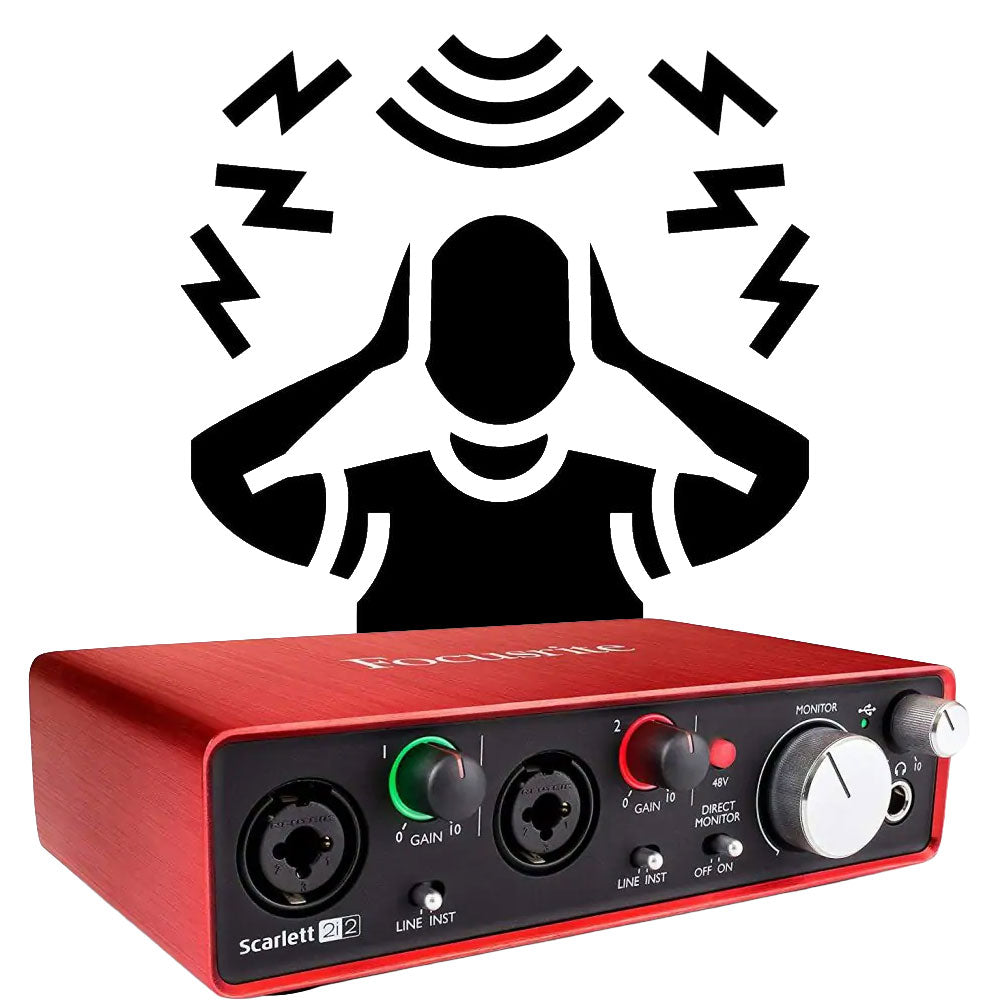
Hiss, hum, and buzz can turn a good recording into a troubleshooting session. Before replacing your interface, work through the signal path one connection at a time. These five checks help you find the source without buying gear you don’t need.
1. Identify the noise before changing anything
Listen with your speakers or headphones at a safe level. Is it a steady hiss, a low hum, or a sharp buzz that changes when you move a cable? Does it appear on a recorded track, or only through the monitors? Record a short test, then mute inputs and tracks one at a time. If the noise disappears when you mute one input, start there. If it remains with all inputs muted, check your monitor connections and playback chain.
2. Check that each cable matches the connection
For a balanced line-level connection, use the appropriate balanced cable when both devices support it, commonly XLR or 1/4-inch TRS. A 1/4-inch TS cable is unbalanced; swapping it into a balanced connection can remove the noise-rejection benefit. But a TRS plug alone does not make a signal balanced: both ends of the connection must support balanced wiring. Confirm the output and input types in your gear manuals before changing cables.
3. Reseat and swap cables one at a time
Power down or lower your monitors first, then check that every plug is fully seated. Inspect cables and connectors for bent contacts, loose plugs, or strain near the ends. Swap one suspect cable for a known-good cable of the same type, and test again. Changing one thing at a time makes it much easier to tell what fixed the problem.
4. Move audio cables away from potential interference
Try separating audio cables from power cords, adapters, and other electrical equipment, especially over long parallel runs. If the noise changes when you move a cable, try a shorter route or a shorter cable where practical. For longer line-level runs, a balanced connection can help reject interference when the connected devices support it.
5. Check gain and power connections
If you hear hiss, check whether an input preamp or monitor volume is turned up more than necessary, and make sure the source is sending a healthy signal without clipping. If you hear hum, test whether it changes when devices share the same power source. Never defeat a safety ground to fix noise. If a power-related hum persists, consult a qualified technician or look into an isolation solution appropriate for your setup.
A quick troubleshooting checklist
- Determine whether the noise is in the recording or only in playback.
- Confirm that the cable type matches the input and output.
- Swap one suspect cable for a known-good equivalent.
- Keep signal cables clear of power adapters and long parallel power runs.
- Set sensible gain levels and keep safety grounds intact.
Still hearing noise? Note which device, input, and cable combination reproduces it. That small bit of detective work will point you toward the right replacement cable or the next troubleshooting step.